
Save a webpage as a shareable JPEG.
Make a compressed image of a long page for email, project updates, or a folder of visual references.
WHEN TO CHOOSE JPEG
A good fit for your workflow.
Everyday attachments, image-heavy pages, campaign examples, and compact visual archives.
Before you export
JPEG uses lossy compression. Lower quality settings can soften small text and fine lines; choose PNG when those details matter most.
FROM PAGE TO FILE
How to export as JPEG.
Capture what you need
Open the page, start the capture, and wait for the editor to open. Keep the tab visible throughout.
Review and crop
Remove areas that are not relevant and add any annotations before exporting.
Choose your quality
Select JPEG and adjust image quality in settings. Export the file and inspect it before sharing.
A FEW USEFUL DETAILS
About JPEG exports.
- Is JPEG always smaller than PNG?
- Not always. File size depends on the image content and quality setting. JPEG often helps with photographs and other image-heavy pages.
- Can I control compression?
- Yes. The image quality setting lets you balance visual detail and file size.
- Does the clipboard option copy a JPEG?
- The extension’s clipboard workflow uses PNG. Export a JPEG file when you specifically need that format.
Adjustable quality
A lighter attachment for everyday sharing
Adjust quality to balance detail and file size. Handy for image-heavy pages and reference folders.
Explore JPEG →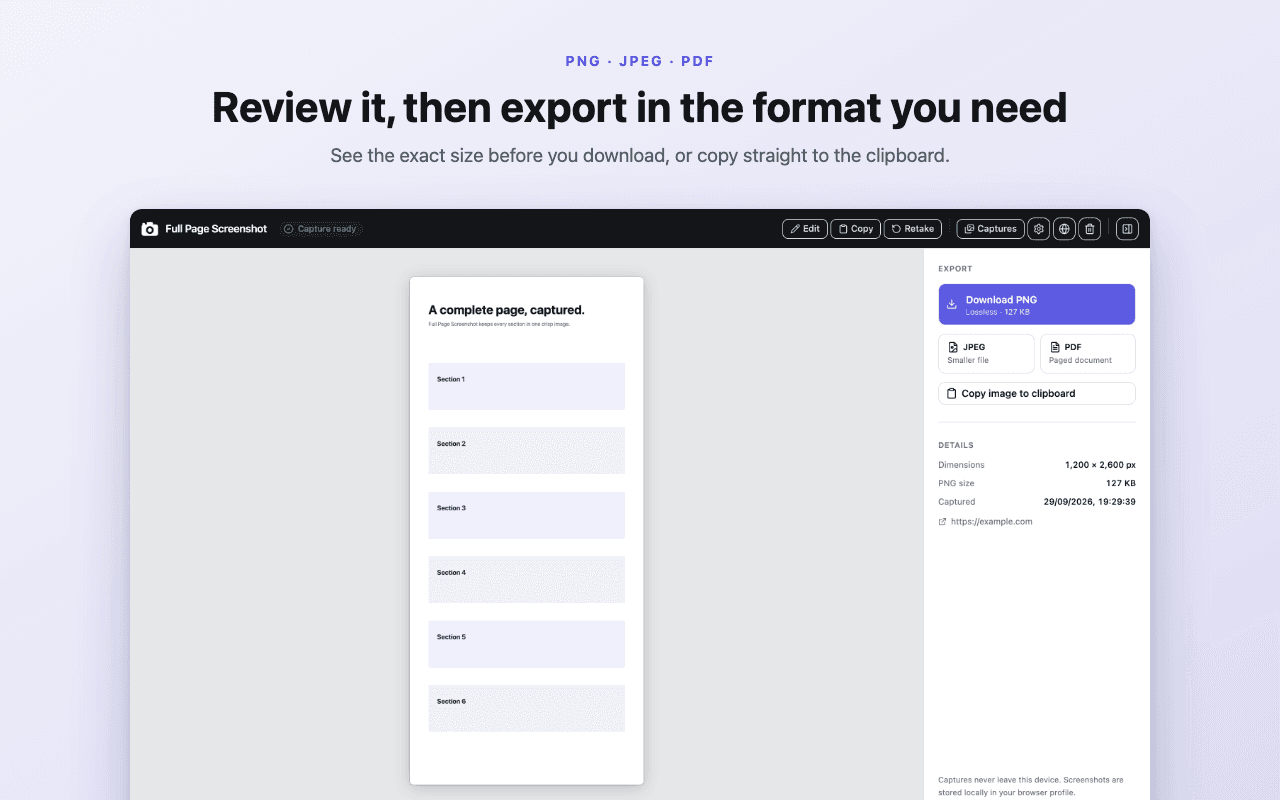
Explore another format
Stop cropping your work
to fit a viewport.
 Add to Chrome — free